
Import contacts from Cobra
Open the section in the cobra connection Addresses. Here, you specify which contacts from cobra should be imported into mailfino.
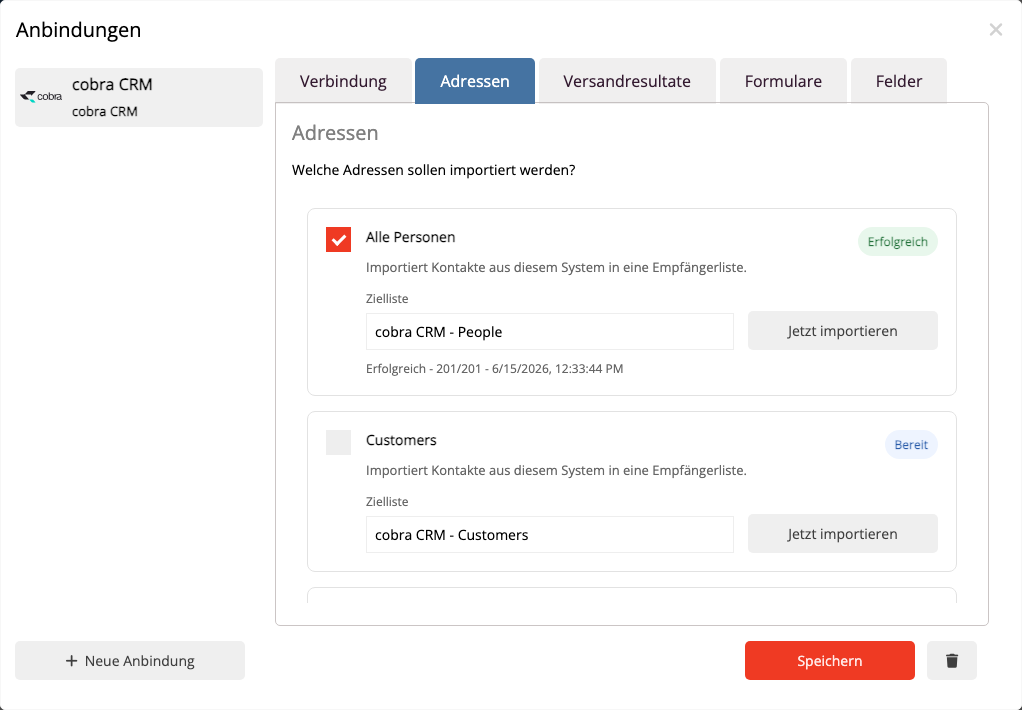
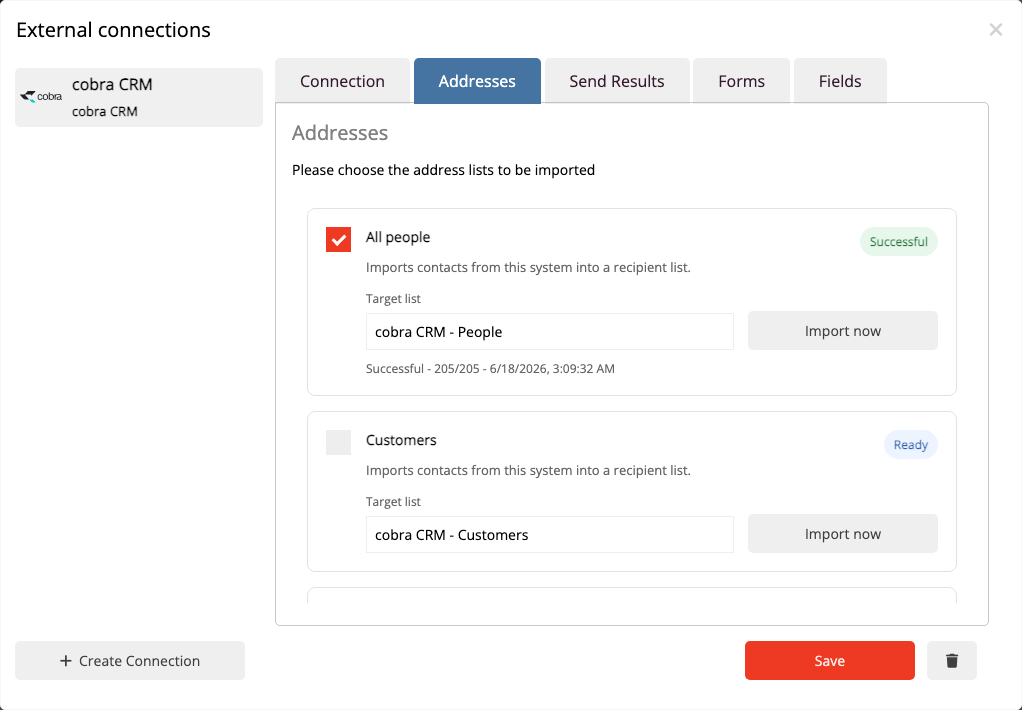
The option All persons takes over all cobra individuals for whom a usable email address can be found. In addition, individual cobra lists can be offered as a source. This is useful if you only want to use specific groups from cobra in mailfino.
Select in the field Target list Select the recipient list into which the contacts should be imported. If you want to use separate recipient lists for different cobra lists, you can specify a separate target list for each import option.
Save the settings. After that, the import can be done with Import now to be executed. Existing recipients are recognized by their email address, so that new duplicates are not created with every import.
Activated imports are also automatically synchronized. By default, mailfino checks every 30 minutes if an import is due. An import profile is usually synchronized once a day during the nightly maintenance window. If you log in and the last automatic run was longer ago, mailfino can also initiate a synchronization in the background.
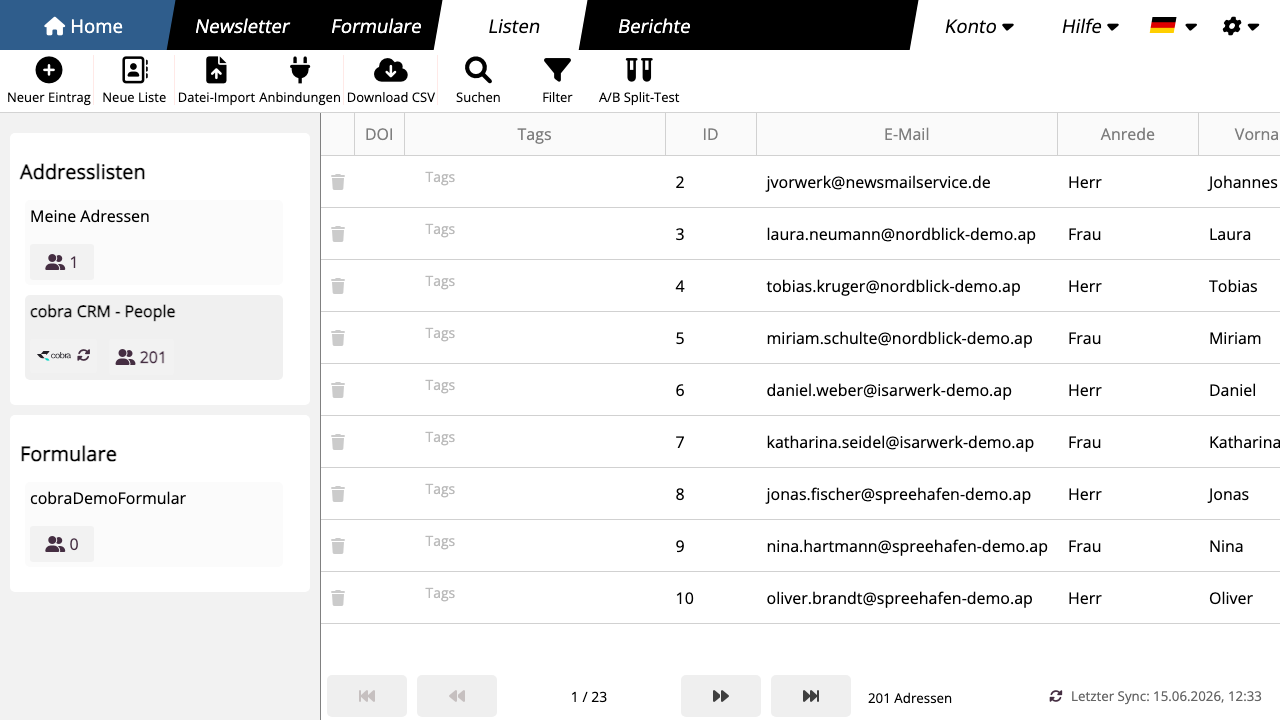
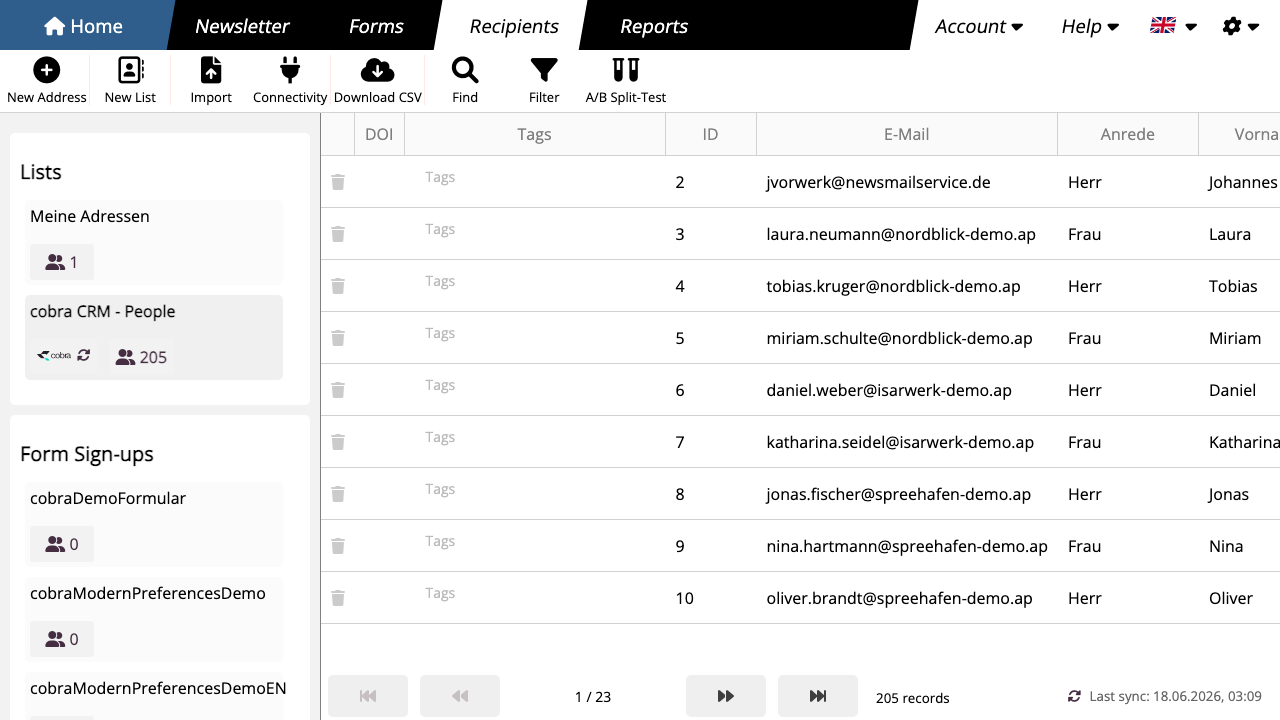
After a successful import, the selected destination list appears in the area Listen. There you will see the imported contacts, the number of addresses, and for imported lists, information about the associated connection. The import can be triggered again later using the sync icon next to the list.
 Deutsch
  English