
Znuny mit mailfino verbinden
Öffne in mailfino Konto → Anbindungen. Wähle Neue Anbindung, wechsle zu Sonstige und klicke auf Znuny.
Trage anschließend folgende Angaben ein:
- Znuny-URL: die Adresse, über die Du Znuny normalerweise im Browser öffnest
- Read-only-Integrationsagent: der zuvor angelegte Znuny-Benutzer
- Passwort: das Passwort dieses Benutzers
Übernimm die Adresse am besten direkt aus Deinem Browser und füge am Ende nichts hinzu.
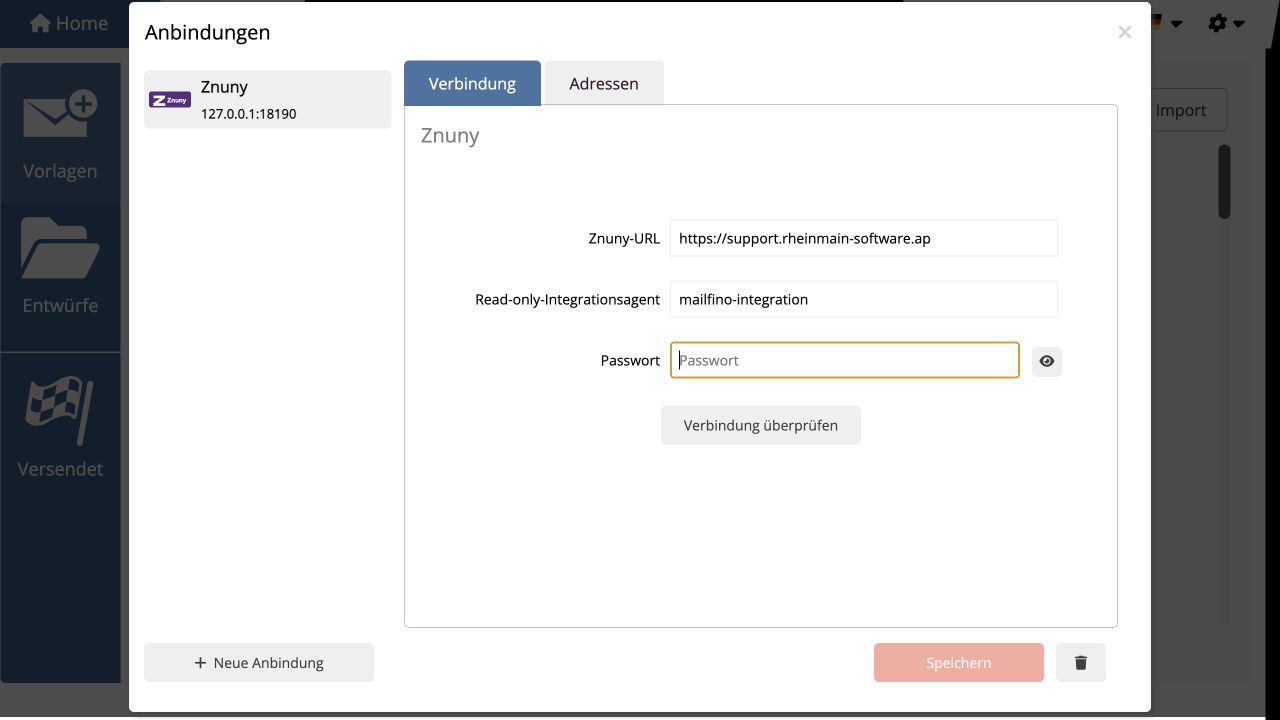
Klicke auf Verbindung überprüfen. Wenn die Prüfung erfolgreich war, kannst Du die Anbindung speichern. Das Passwort wird danach nicht mehr angezeigt.
Wenn Dein Znuny über das Internet erreichbar ist, muss seine Adresse mit https:// beginnen.
Falls mailfino meldet, dass diese Anbindung bereits vorhanden ist, öffne einfach den bestehenden Eintrag. Jede Znuny-Installation muss nur einmal verbunden werden.
In mailfino, open Account → External connections. Select Create Connection, open Other, and choose Znuny.
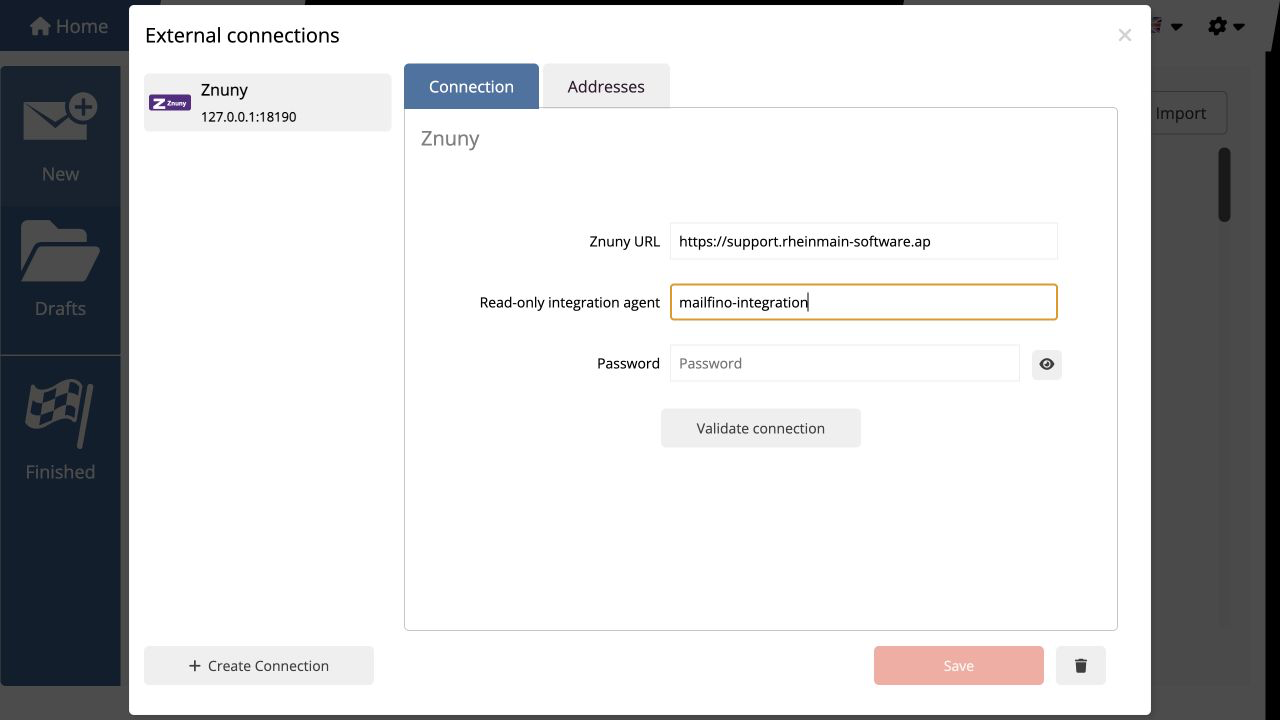
Enter the following details:
- Znuny URL: the address you normally use to open Znuny in your browser
- Read-only integration agent: the dedicated Znuny user you created
- Password: that user’s password
It is best to copy the address directly from your browser. Do not add technical paths to the end of it.
Select Validate connection. Once the check succeeds, you can save the connection. The password is no longer displayed afterwards.
If your Znuny system is accessible over the internet, its address must begin with https://.
If mailfino reports that the connection already exists, simply open the existing entry. Each Znuny installation needs to be connected only once.
 Deutsch
  English