
In this chapter
< Contents
Print

In the newsletter editor, you can insert a product card and connect it to a PrestaShop product. The card uses the product name, image, description, price, and link from the stored product data.

Insert the product card element in the editor and select it. The Style Editor shows the Product data section. Open product selection, choose the PrestaShop connection, and search by name, SKU, or category.

The selection dialog shows product image, description, and price so you can identify the right product. The search is limited and loads matching results only, instead of opening the complete shop catalog in the browser.
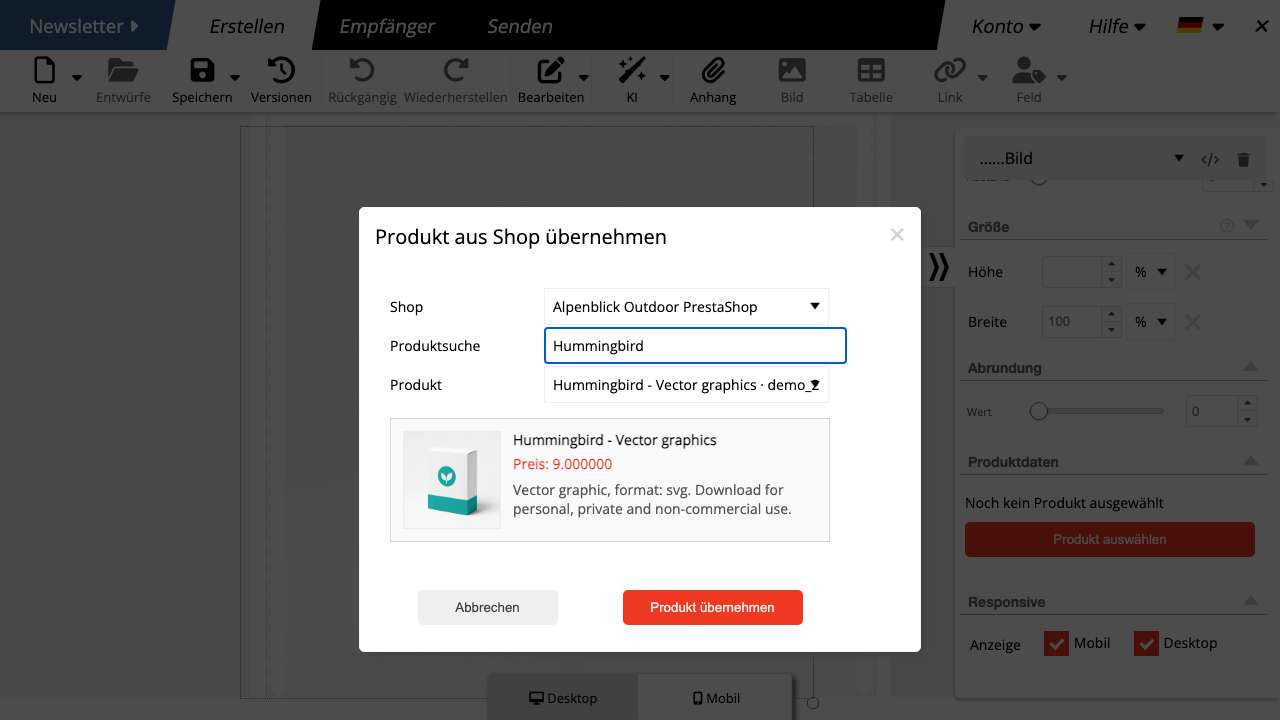
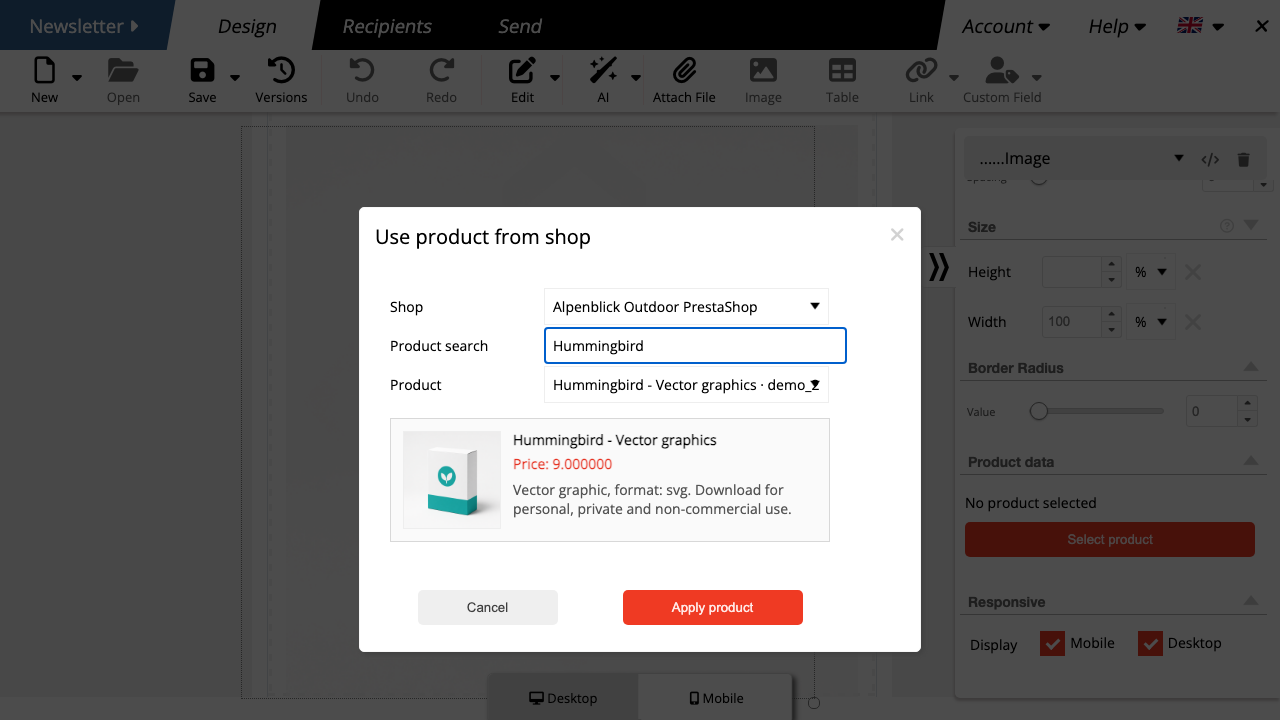
Select a PrestaShop product for a newsletter

After selection, mailfino fills the product card automatically. The image and button link to the product in the shop. Still check the text before sending, because shop descriptions are not always optimized for email.
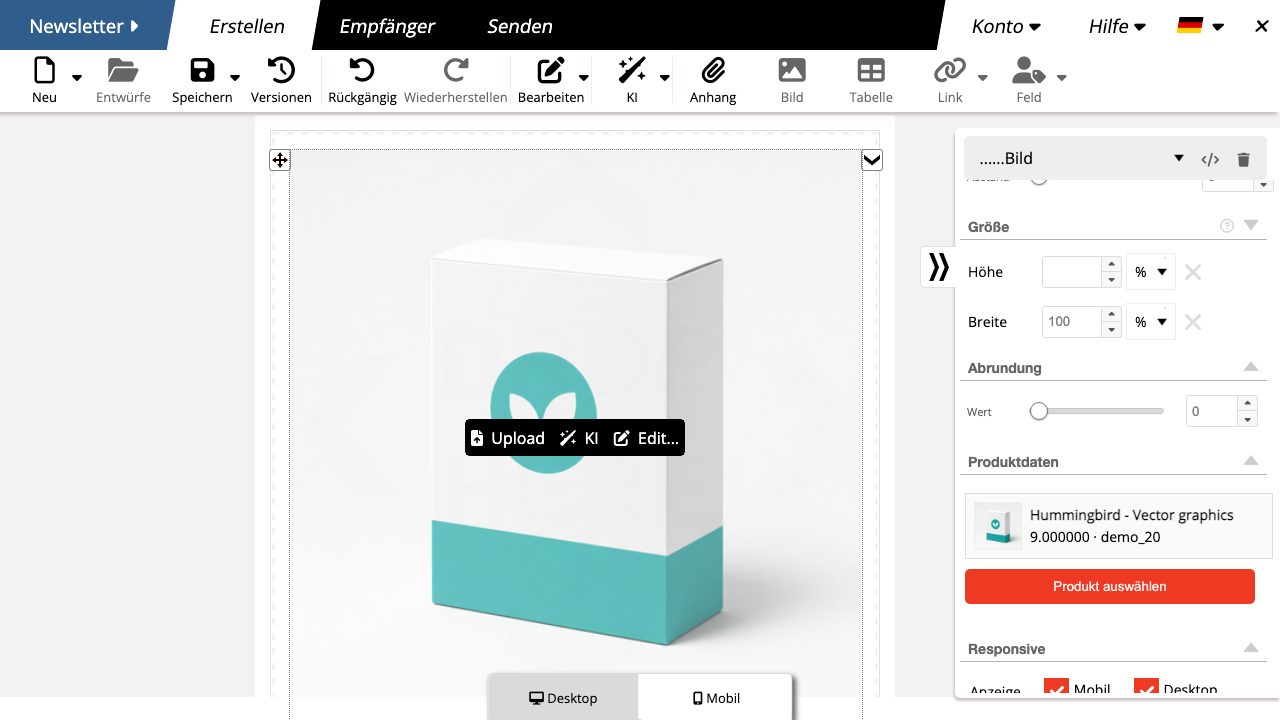
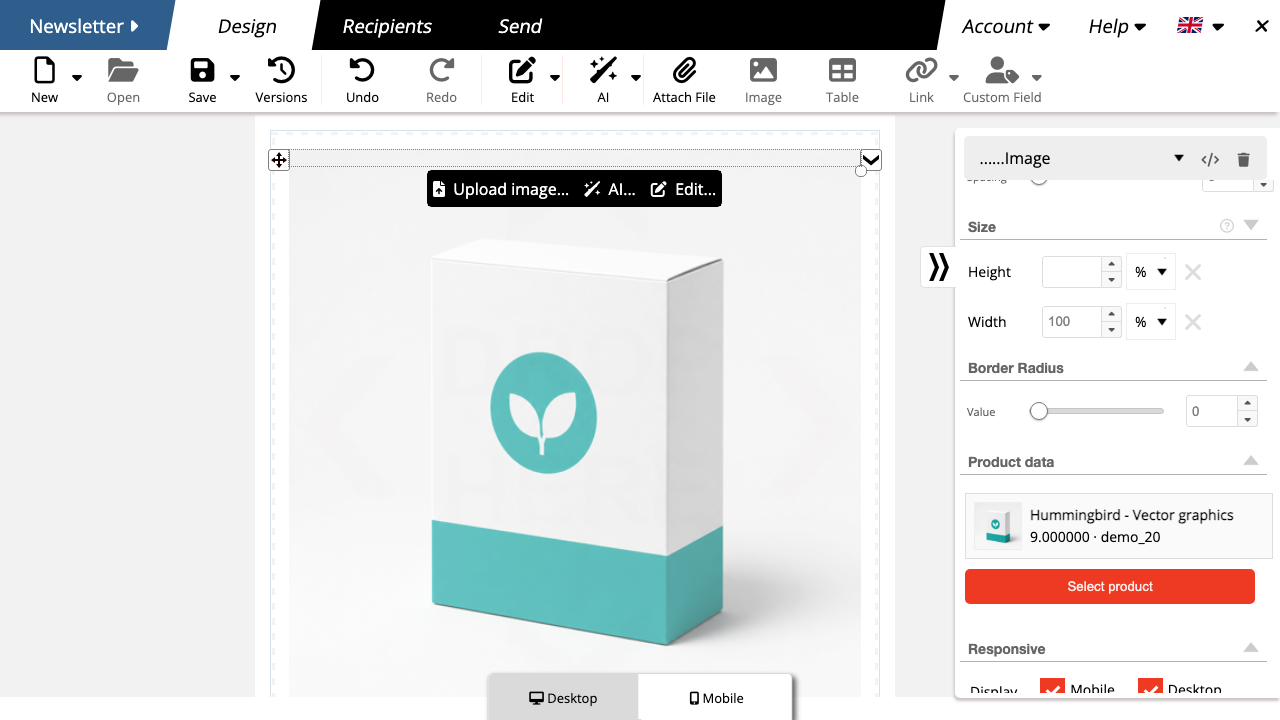
PrestaShop product card in the newsletter editor

If a product changes later in PrestaShop, an already saved newsletter is not updated automatically. Select the product again in the editor when the card should use new text, prices, or images.

In the newsletter editor, you can insert a product card and link it to a PrestaShop product. The card will then display the product name, image, description, price, and link from the saved product data.

Insert the product card element in the editor and select it. In the style editor, the area will appear Product data. There you open the product selection, choose the PrestaShop connection and search by name, SKU, or category.

The selection dialog shows the product image, description, and price so you can identify the right product. The search is limited and only loads matching results instead of opening the entire shop catalog in the browser.

PrestaShop Product Selection in Newsletter

After selection, mailfino automatically fills in the product card. The image and button link to the product in the shop. Nevertheless, check the text before sending, because product descriptions from shops are not always optimized for emails.

PrestaShop Product Card in Newsletter Editor

If a product is changed later in PrestaShop, an already saved newsletter will not update automatically. Select the product again in the editor if you want the card to adopt new texts, prices, or images.