
Troubleshooting
If a Salesforce integration requires attention, mailfino will display a warning icon on the integration and in the settings menu.
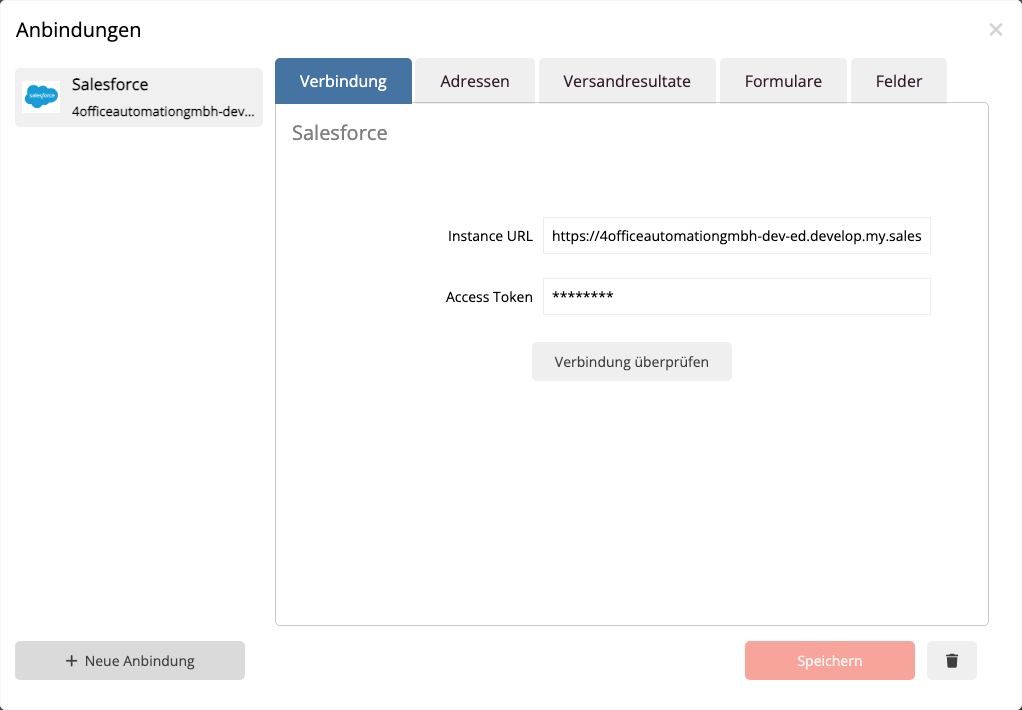
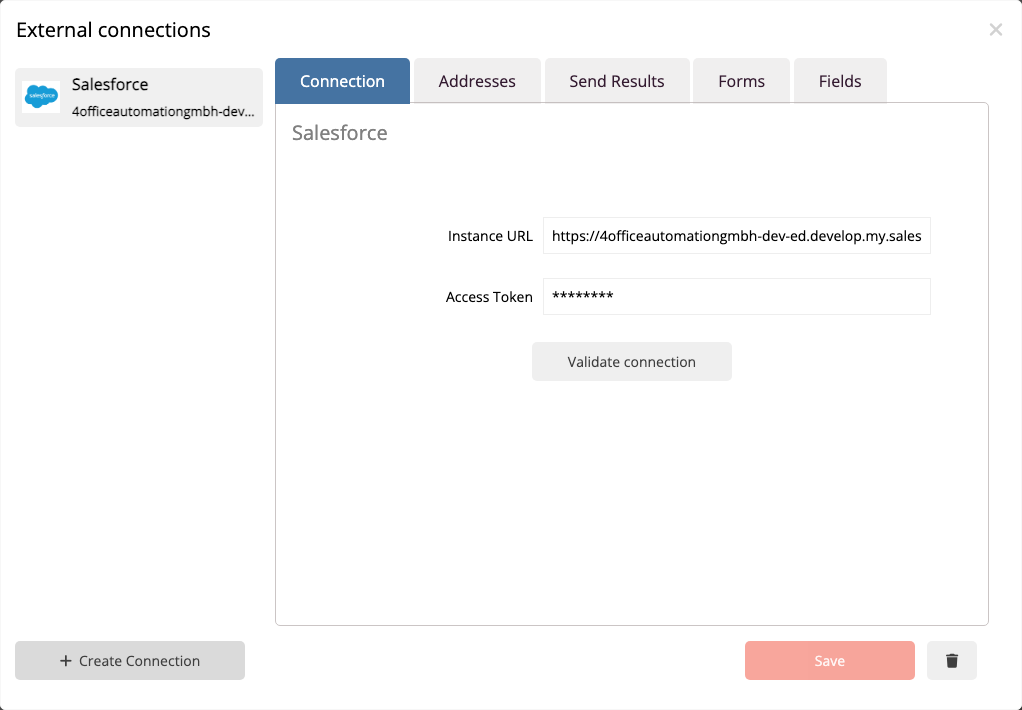
Check connection
Open the Salesforce integration and click Check connection. mailfino checks the Salesforce API and stored OAuth tokens.
If Salesforce requires re-authentication, please log in again and confirm access. There is no need to delete an existing Salesforce connection for this. mailfino will update the stored tokens on the existing connection.
Session expired or invalid
If a message like Session expired or invalid it appears, a valid refresh token is most often missing, or Salesforce has revoked the token.
Check in Salesforce if the external client application allows these scopes:
- Manage user data via APIs
- Perform requests at any time (refresh_token, offline_access)
After that, restart the Salesforce connection in mailfino. Only a new OAuth session can save a refresh token afterward.
Campaigns are not being displayed
If no Salesforce campaigns are displayed, check the permissions of the connected Salesforce user. The user must have the "Read" permission for Campaigns. In some Salesforce organizations, the permission Marketing User required.
For import, it is sufficient All Contacts even without campaigns. Campaigns are only necessary if you want to use specific Salesforce groups as an import source or form destination.
Form submissions with warning symbols
Failed form submissions appear in the Salesforce connection under the section Problems. There you can check the error and try again after correcting it.
Typical causes are:
- The email address is missing from the form
- A required field in Salesforce cannot be written
- A field mapping refers to a Salesforce field that the user is no longer allowed to write to
- The target campaign has been deleted or is not visible to the user
Correct the data or permissions and then restart the processing.
 Deutsch
  English