
SuiteCRM verbinden und Kontakte importieren
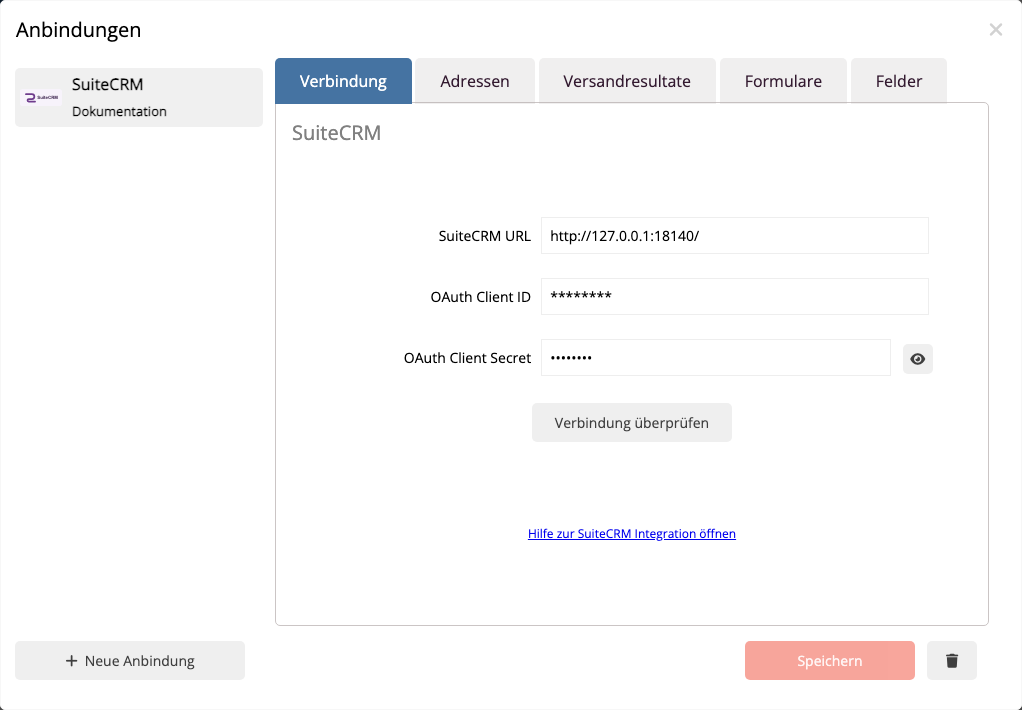
- Open Einstellungen → Anbindungen.
- Wählen Sie New connection und anschließend SuiteCRM.
- Tragen Sie die Basis-URL Ihrer SuiteCRM-Instanz ein, zum Beispiel
https://crm.example.com. - Tragen Sie OAuth Client ID und OAuth Client Secret ein.
- Prüfen Sie die Verbindung. Speichern ist erst nach einer erfolgreichen Prüfung möglich.
- Speichern Sie die Anbindung.
In the area Import stehen anschließend diese Quellen bereit:
- All Contacts importiert alle erreichbaren SuiteCRM Contacts.
- Eine benannte Target List importiert die Contacts, die mit dieser Liste verbunden sind.
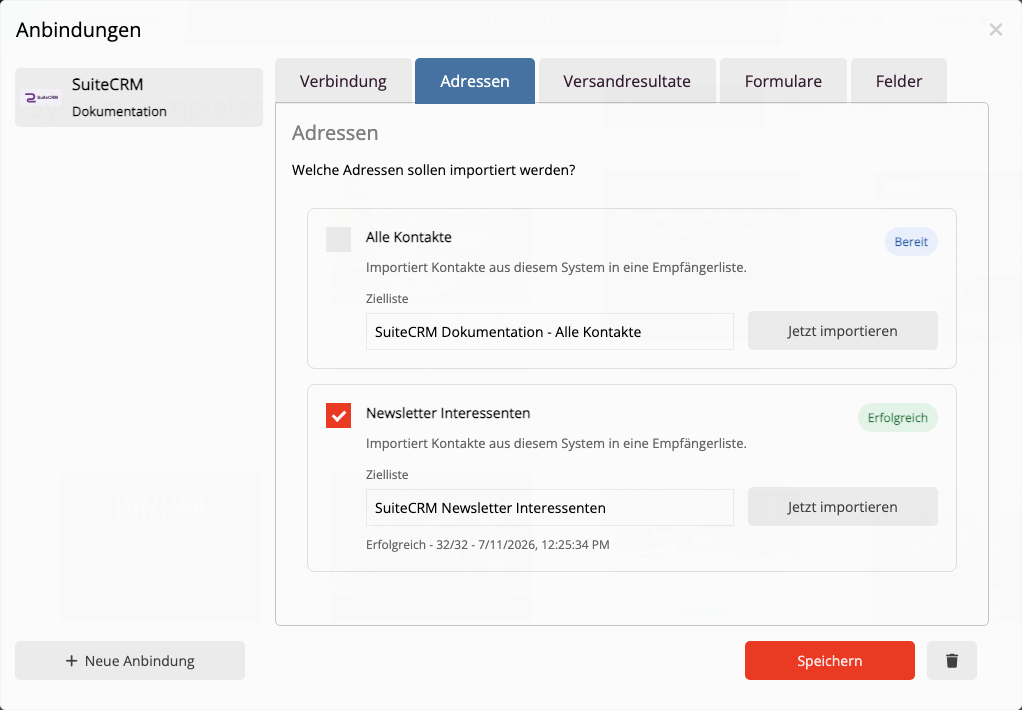
Wählen Sie die Zielliste in mailfino und prüfen Sie die Feldzuordnung. Standardmäßig werden E-Mail, Vorname, Nachname, Firma, Position, Telefon und die primäre Adresse angeboten, soweit die Felder in SuiteCRM vorhanden und erreichbar sind.
Beim ersten Import legt mailfino für jeden SuiteCRM Contact einen stabilen Remote-Bezug an. Ein späterer Reimport aktualisiert denselben lokalen Kontakt und erzeugt für dieselbe SuiteCRM-ID keine neue Dublette. Entfernte oder nicht mehr erreichbare SuiteCRM Contacts werden in V1 nicht automatisch aus mailfino gelöscht.
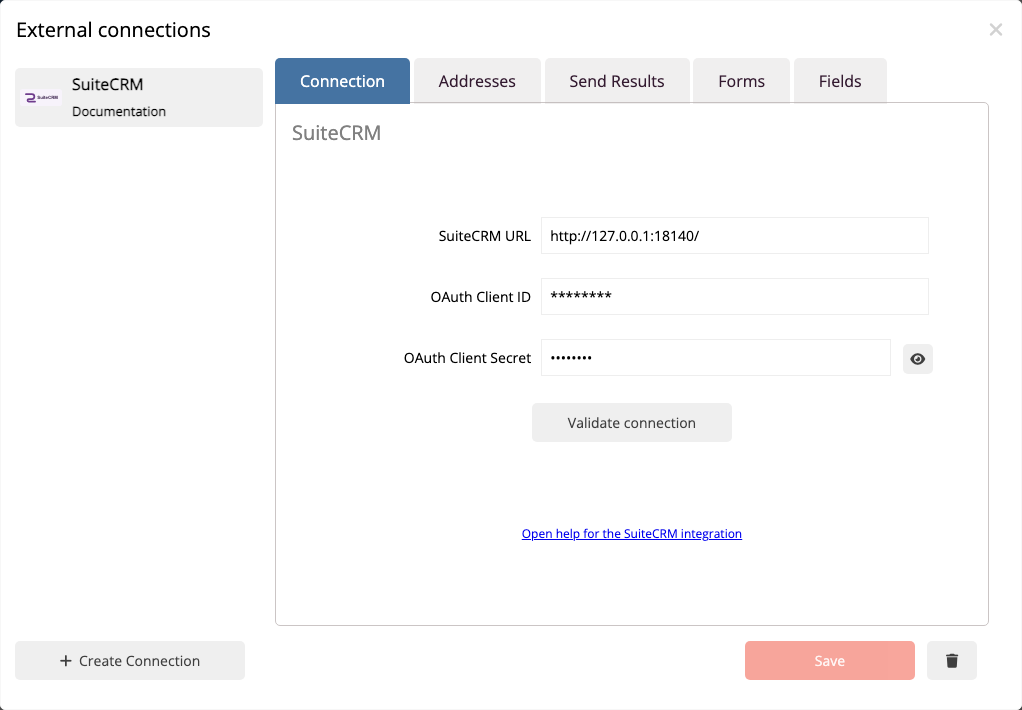
Open Settings → Connections, choose Create connection, and select SuiteCRM. Enter the base URL of your SuiteCRM installation, OAuth client ID, and OAuth client secret. Validate and save the connection.
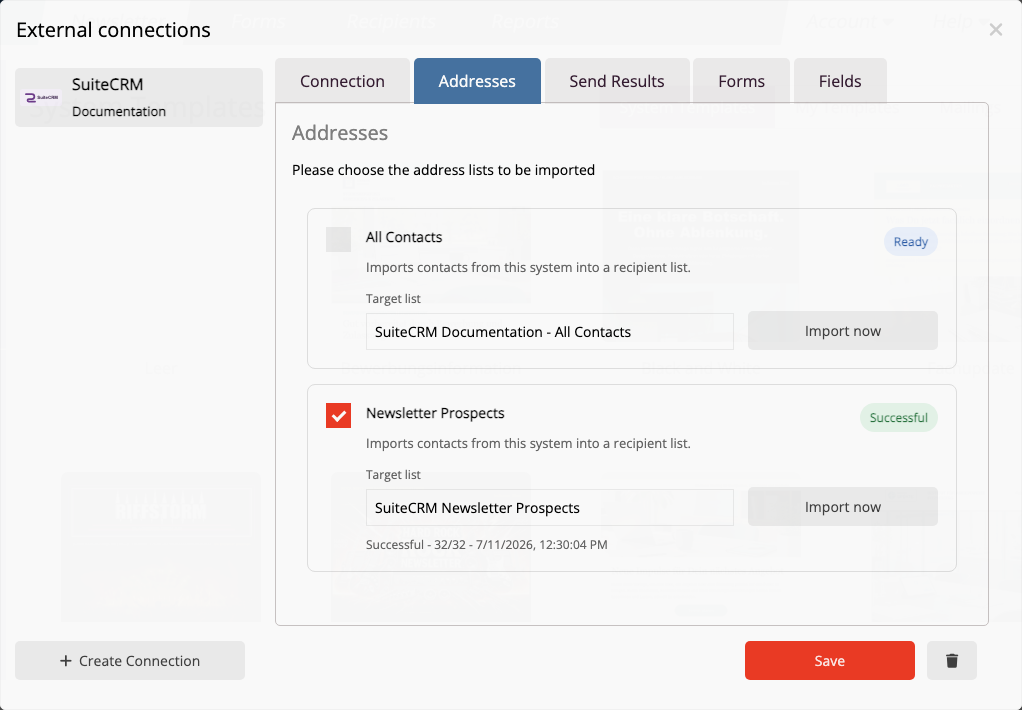
The Import tab provides All Contacts and the Target Lists visible to the assigned SuiteCRM user. Select a source, choose the destination list in mailfino, and start the import.
mailfino stores the SuiteCRM Contact ID as a stable remote reference. A later reimport updates the same local contact rather than creating another contact for the same SuiteCRM ID. Contacts removed from SuiteCRM are not automatically deleted from mailfino in this beta.
 Deutsch
  English