
Set up automatic email series
After confirming a registration (or directly after submitting a single opt-in form), you can automatically send your new subscribers one or more emails, for example a welcome email. To do this, click in the list of your forms on Add email
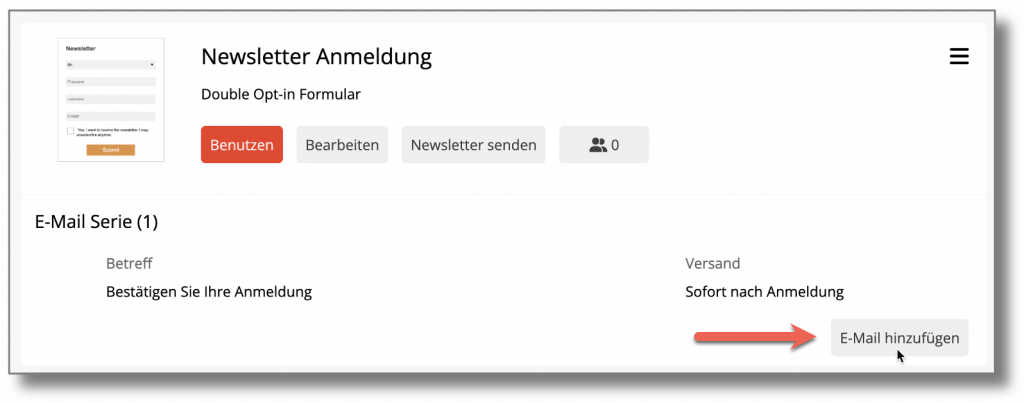
The editor for automatic emails is opened with a new blank email:
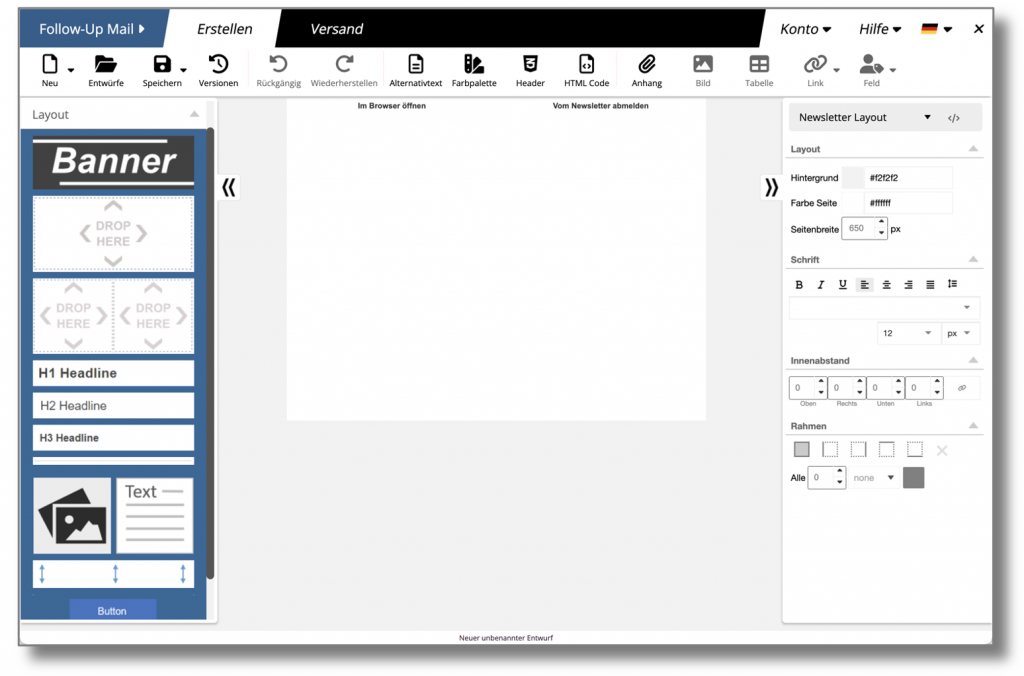
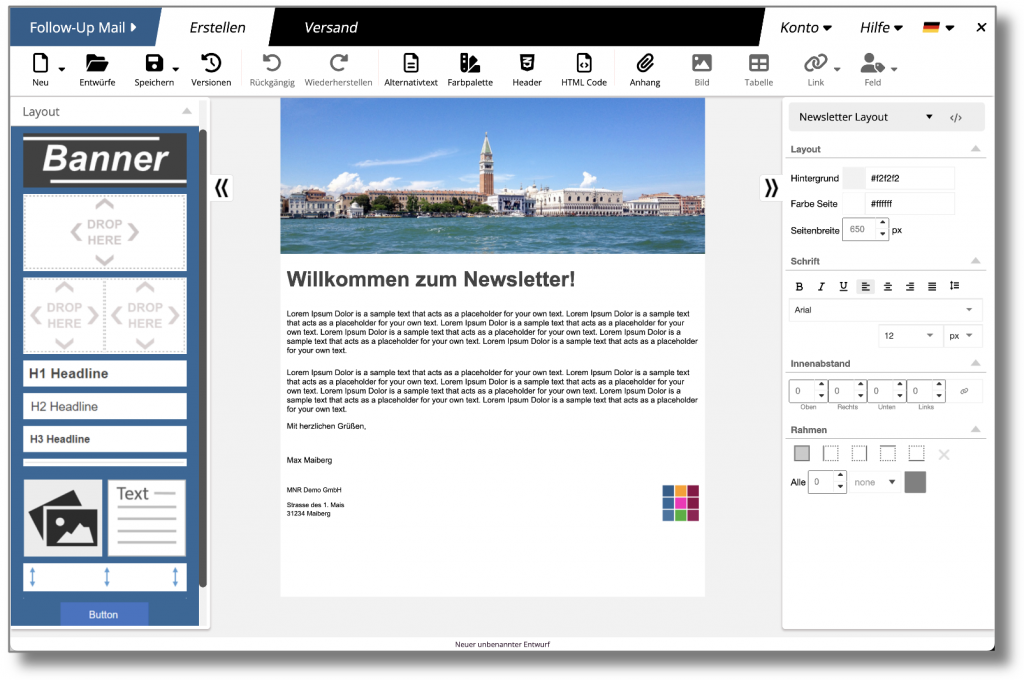
In contrast to creating a newsletter, there is no need to select the recipient list because the email is automatically sent to all new subscribers who register using the corresponding form.
Via the menu item New to load a template or an HTML file.
On the Sending-page are the options for programming the dispatch time.
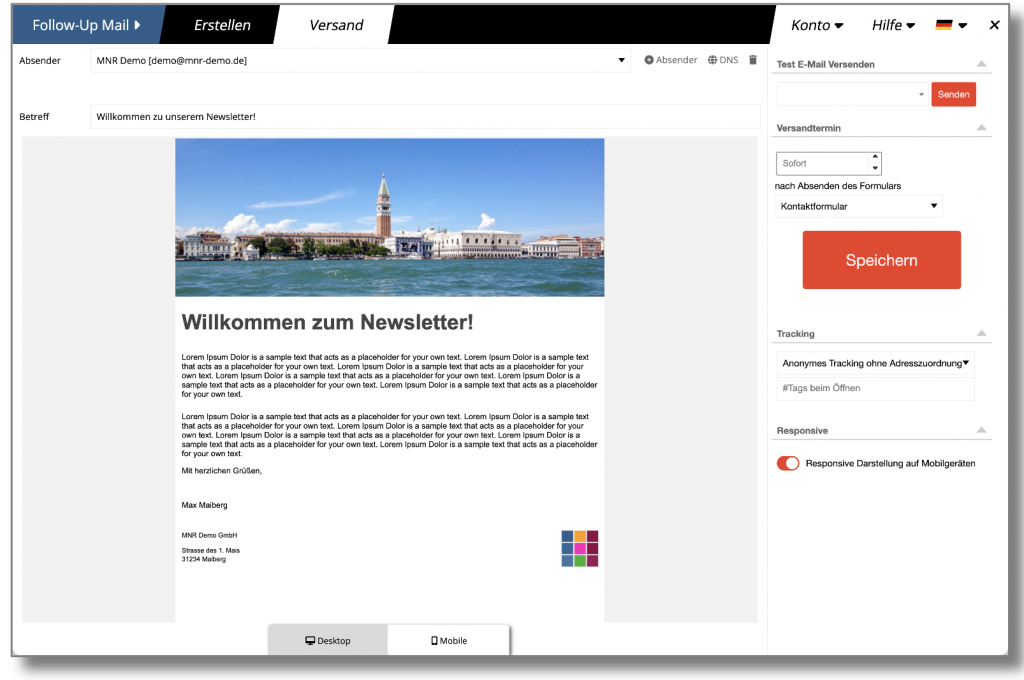
The main difference to sending newsletters is the sending date: instead of a specific date, the time at which the email is to be sent after registration is specified. This can be either immediately after confirmation of the registration or a few (or many) days later.
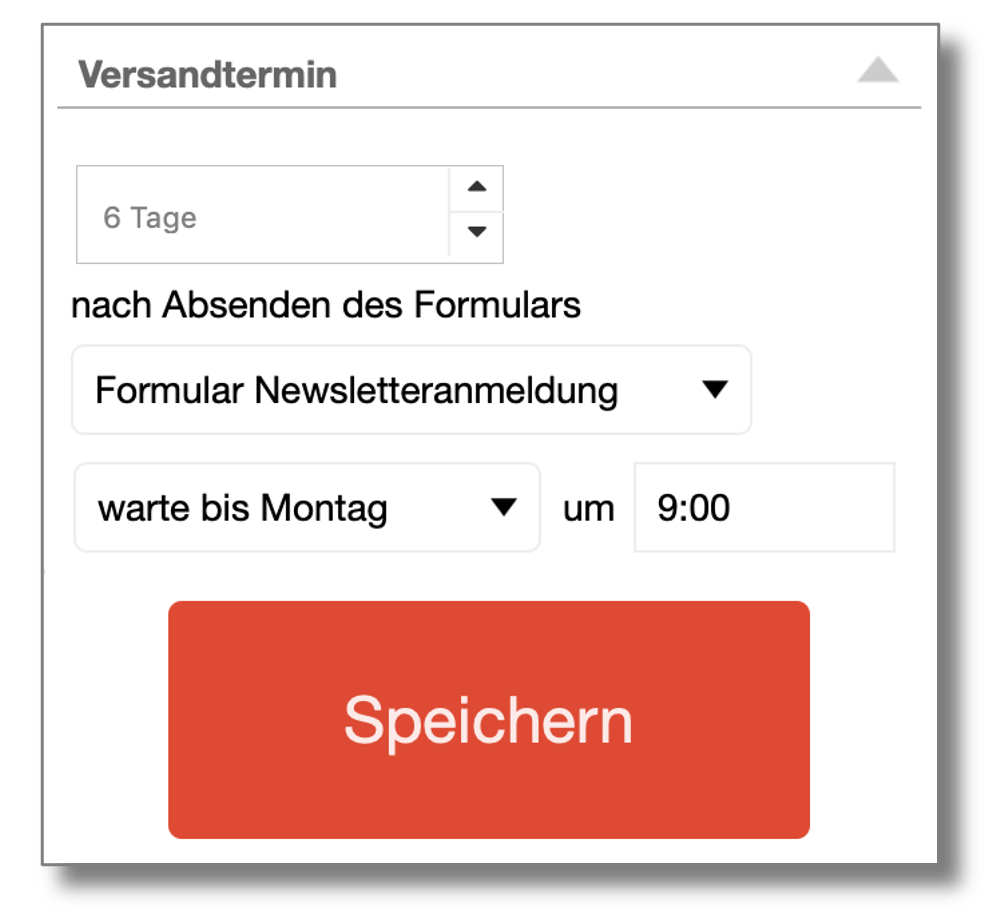
It is also possible to wait until a certain day of the week or a certain day of the month before sending the message (e.g. until Tuesday, or until the 5th day of the month).
Press the Saveto activate the automatic email. The system displays a summary:
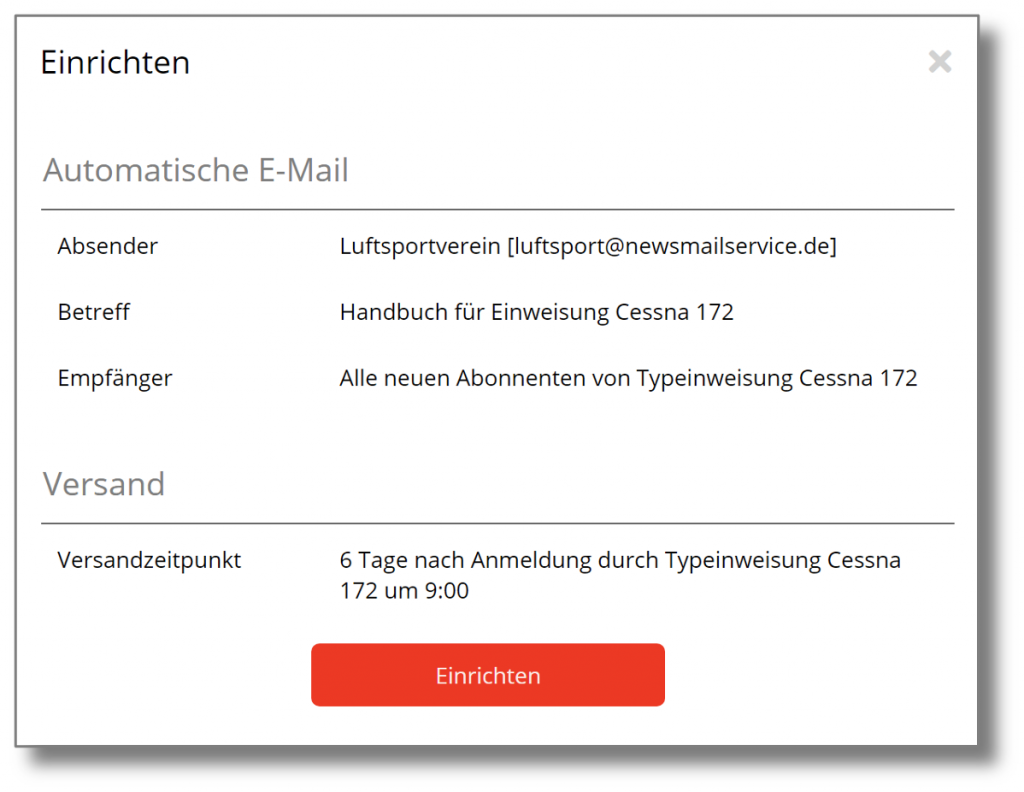
Click again on Set upto confirm the setup. The automatic email will now be sent to all recipients who register using the corresponding form. Recipients who have previously registered will not receive the emails.
If you have set up a new automatic email, it will be added to the email sequence for the associated form:
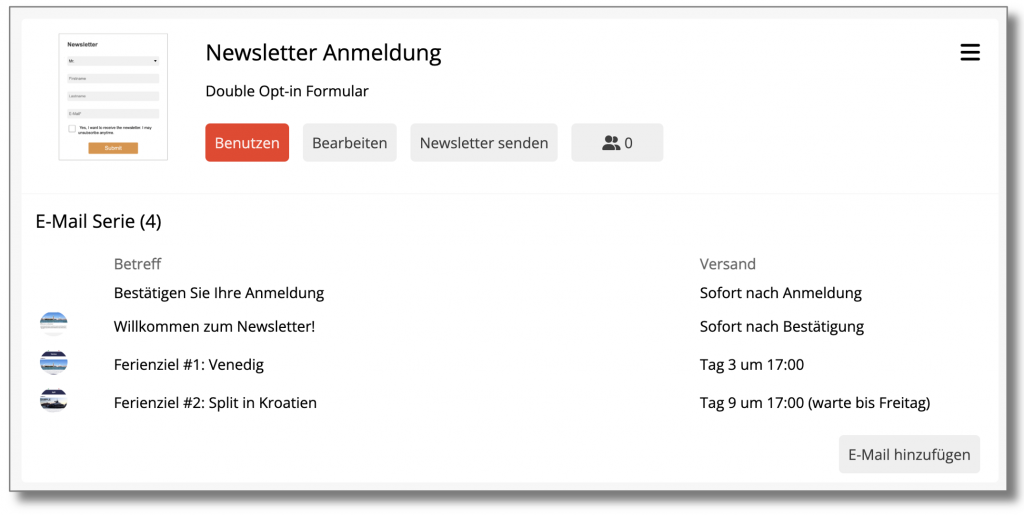
The sorting is based on the set dispatch time.
Automatic email deletion
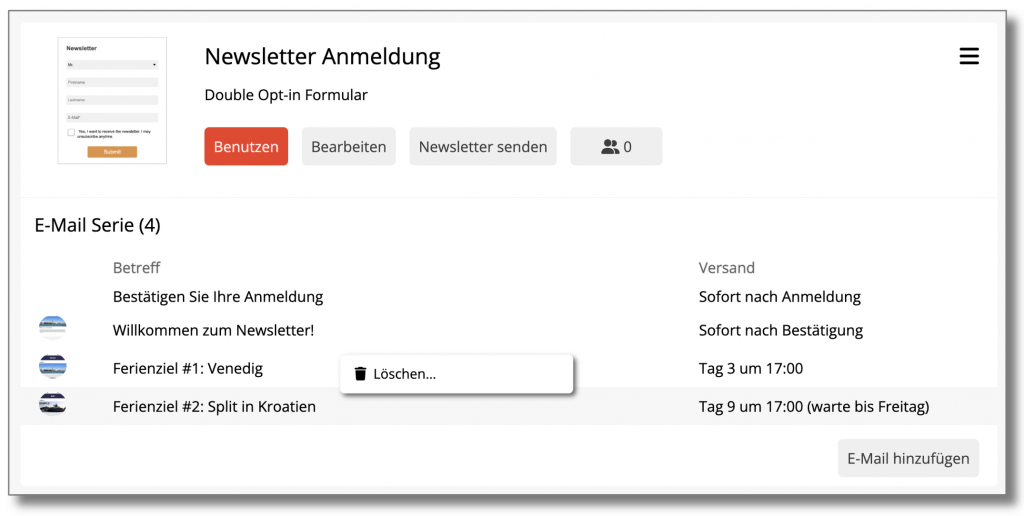
To delete an email in the series, right-click and then click on Delete...
 Deutsch
  English