
Import sending results into cobra
The menu item Sending reports opens a list of sent email newsletters, from which sending reports and statistics for click & view tracking can be accessed. Furthermore, the results can be compared with the addresses stored in cobra.
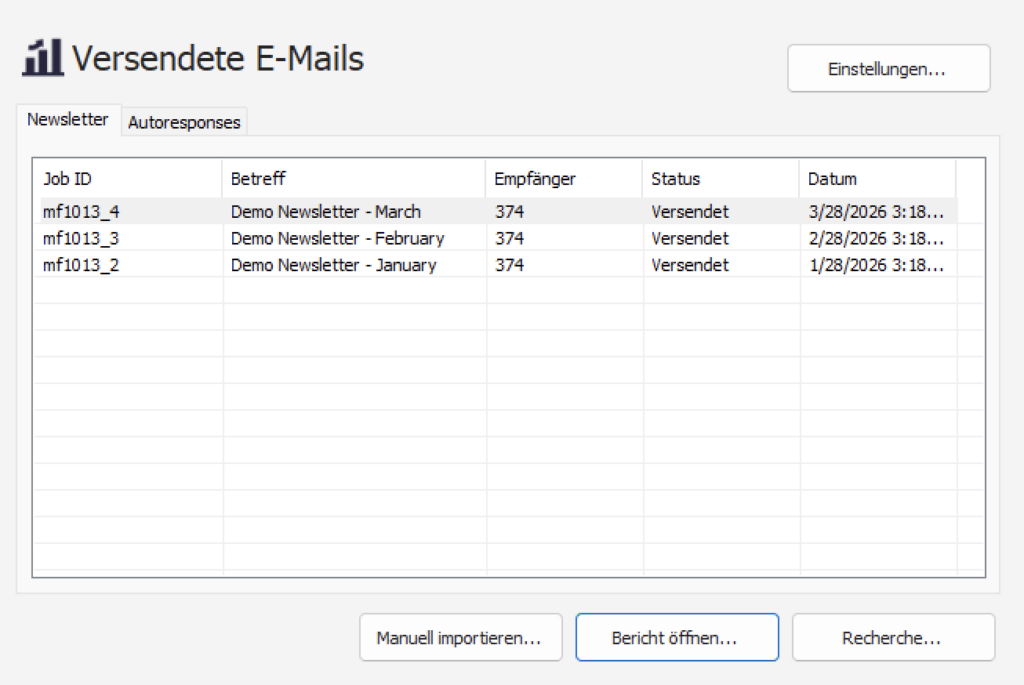
Newsletter are all newsletters sent out, Autoresponses all automatically sent emails, such as activation or welcome emails. The following functions are available:
Settings In the upper right corner, the settings for importing sending results open. These are explained in detail further down.
Import manually... starts the import of sending results for the selected according to the import rules set up in the settings.
Open report… Open the sending report in your web browser.
Searching... allows for detailed research of recipients based on sending status and behavior. For example, it is possible to research all individuals who have received the newsletter.
Import Settings
The dialog for the settings for importing sending results has two pages.
Create contact note
On the page Contact note you can define whether contact notes should be created and what they should look like. To do this, the checkbox Create contact note must be ticked.
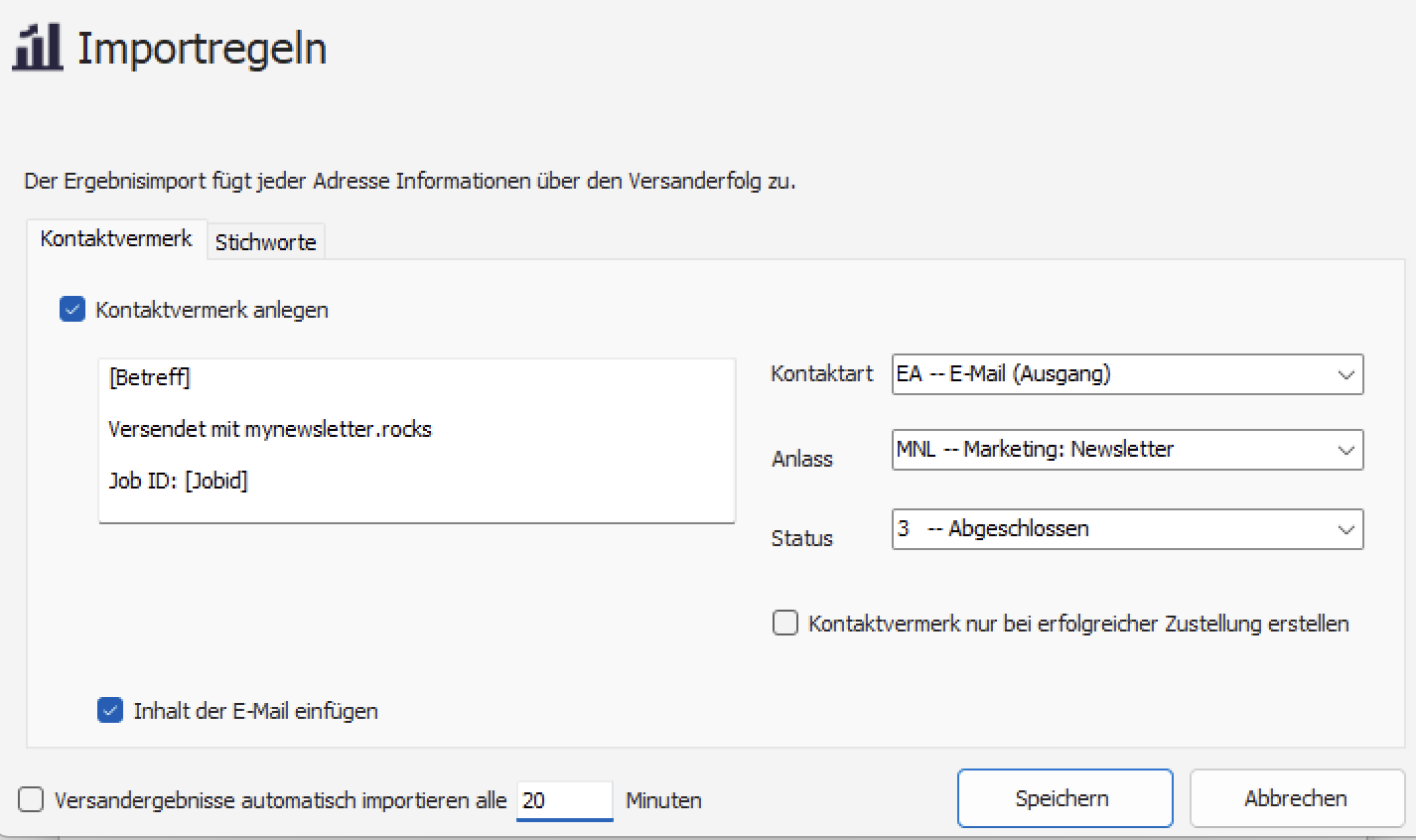
The text of the contact note can be freely defined. The following personalization fields are also available:
[Subject] - Subject line of the emails
[Jobid] - Job ID of the mailing
[Sending status] - Sending status
If the checkbox Insert content of the email is selected, a plain text version of the email is attached to the contact note.
Furthermore, it is possible to Contact type, Occasion or Status determine – where the naming of these fields may vary depending on your cobra database configuration.
If you wish, a contact note can only be created if a successful dispatch has also taken place. Our add-in makes every effort to avoid duplicate contact entries. If there is already a contact note for the mailing, no duplicate will be created as long as the job ID is included in the description of the contact note.
Automatic Import

The add-in can automatically import sending results at set intervals. If this option is not selected, you can also import the results manually.
Keywords
On the second page, you can specify which keyword should be assigned to the address depending on the sending result. All keywords can be freely assigned. As in cobra, keyword levels are separated by a double minus sign.
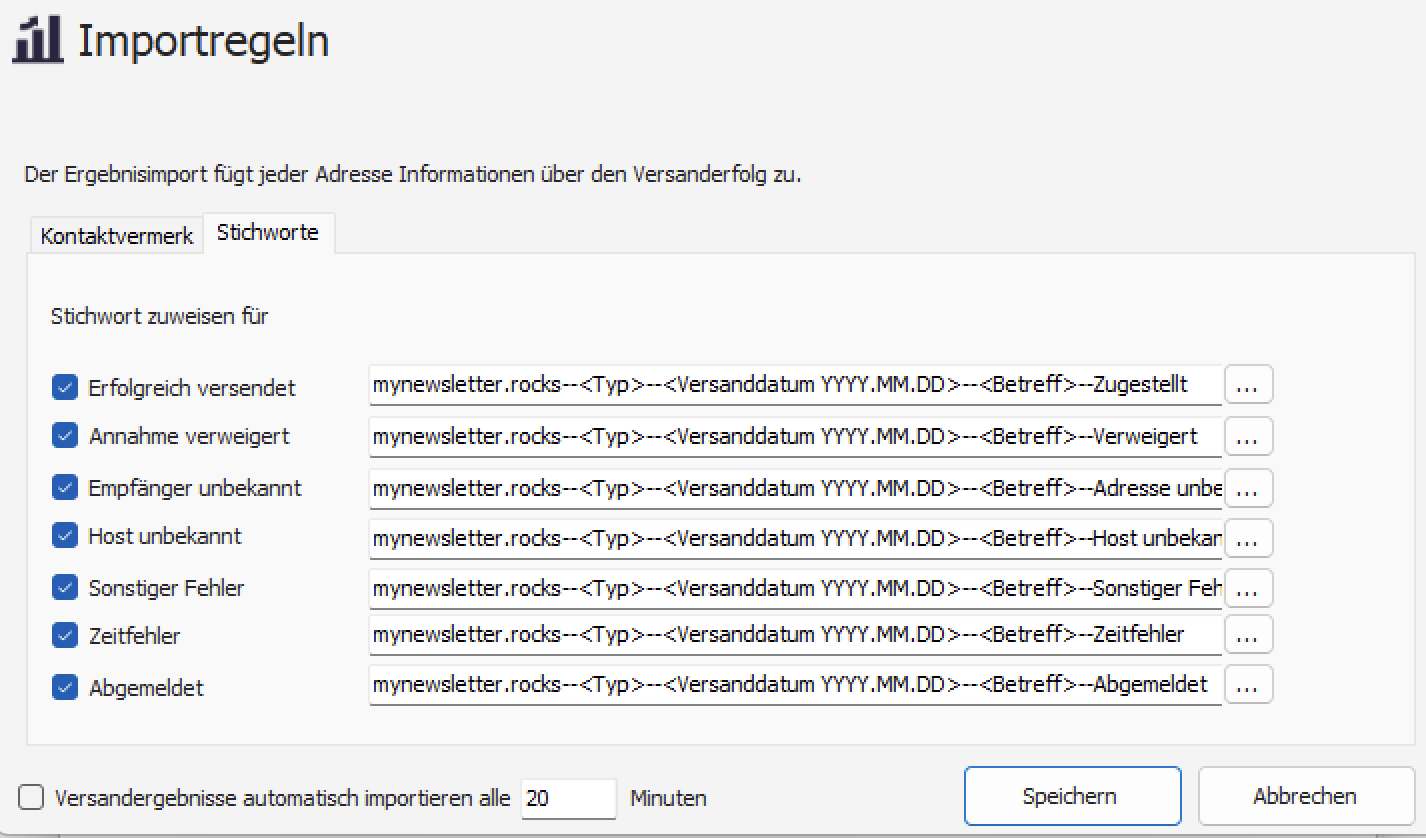
Key words can be selected by clicking on the ... button can be defined individually
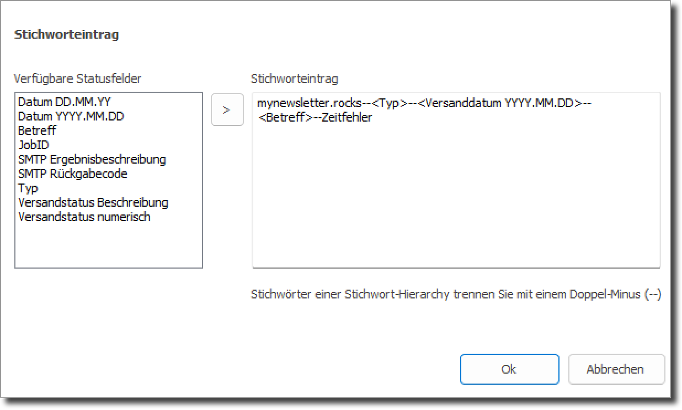
The text can be freely defined. Various personalization fields are also available here:
Date DD.MM.YY - Date of dispatch in the order DD.MM.YY
Date YYYY.MM.DD - Date of dispatch in the order YYYY.MM.DD
Subject - Subject line of the mailing
JobID - Job ID of the mailing
SMTP result description - Response from the receiving server - note: as there are many different codes, there may be many different keywords here.
SMTP return code - Return code of the receiving server - note: as there are many different codes, there may be many different keywords here.
Type - Type of job, either newsletter or autoresponse
Sending status Description - Sending status as a category, e.g. Delivered, Unknown, Refused, etc.
Sending status numeric - Numerical sending status (internal numerics of our system)
Research sending results
With the Research function, you can search for recipients who either have a certain sending status or have shown a certain behavior. This dialog is also divided into two pages:
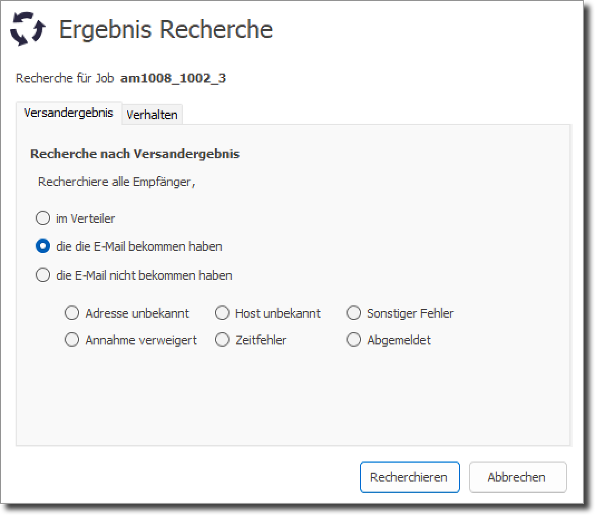
Sending result
Here you can either search for all recipients or for those who have or have not received the email. For the addresses that did not receive the email, you can search for a specific sending error.
Behavior
All recipients who have shown a certain behavior, e.g. opened the email and clicked on a certain link, can be researched here.
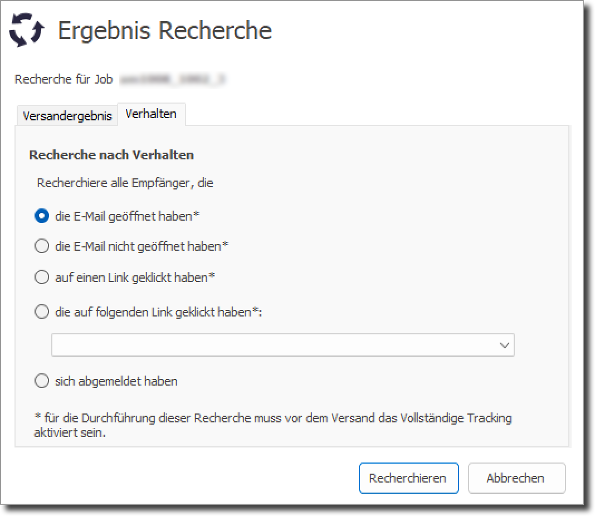
For most options for behavioral research, full tracking must be enabled before sending.
 Deutsch
  English