
Zielgruppen nach Käufen bilden
Nach dem Bestellimport können Sie in mailfino dynamische Zielgruppen auf Basis von Shopware Käufen erstellen. Öffnen Sie den Bereich Listen und anschließend den Filterdialog.
Wechseln Sie im Filterdialog auf den Tab Käufe. Wählen Sie zuerst den Shopware Shop aus. Danach können Sie eine Bedingung auswählen, zum Beispiel ob ein Empfänger überhaupt gekauft hat, ein bestimmtes Produkt gekauft hat oder aus einer bestimmten Kategorie gekauft hat.
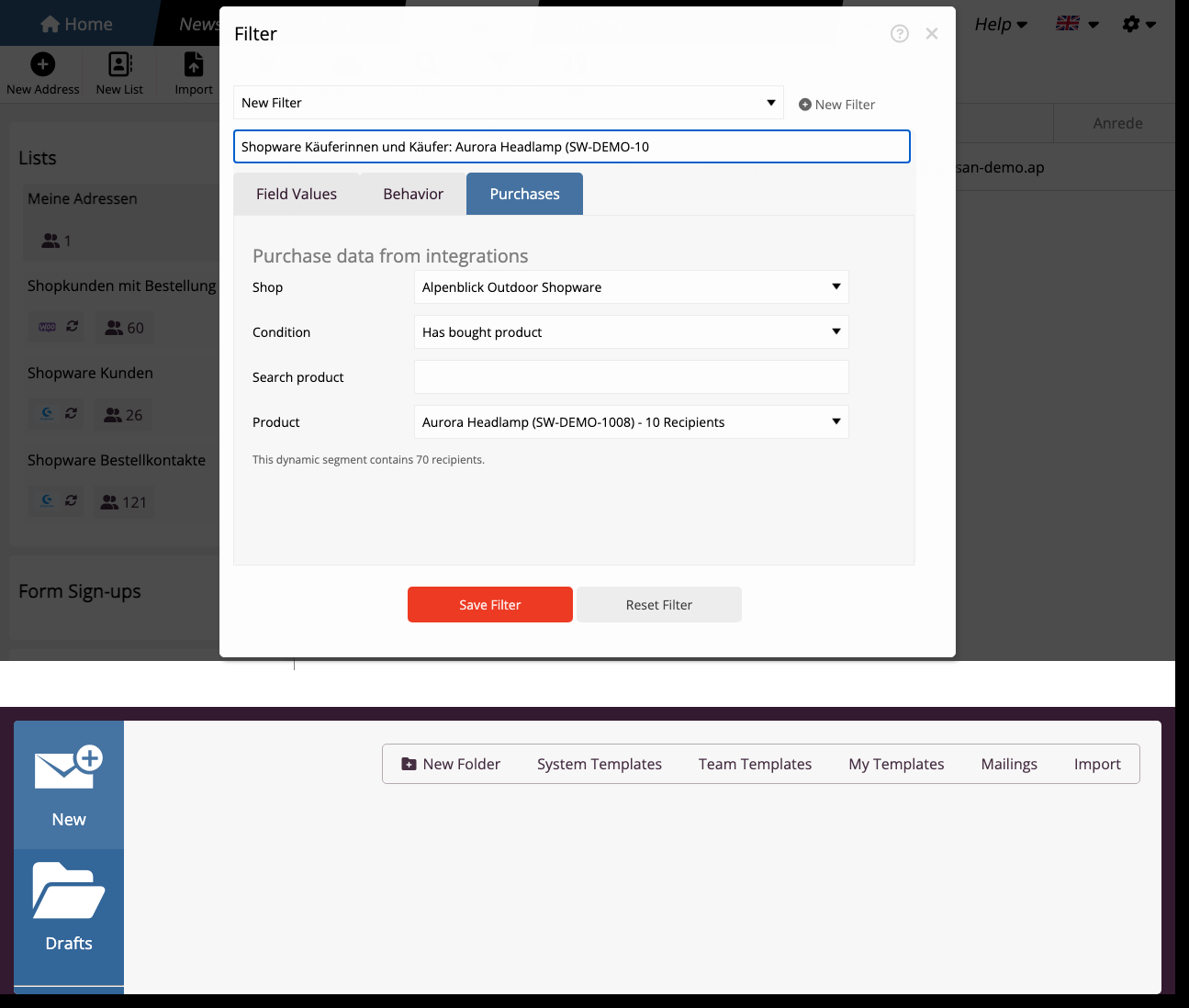
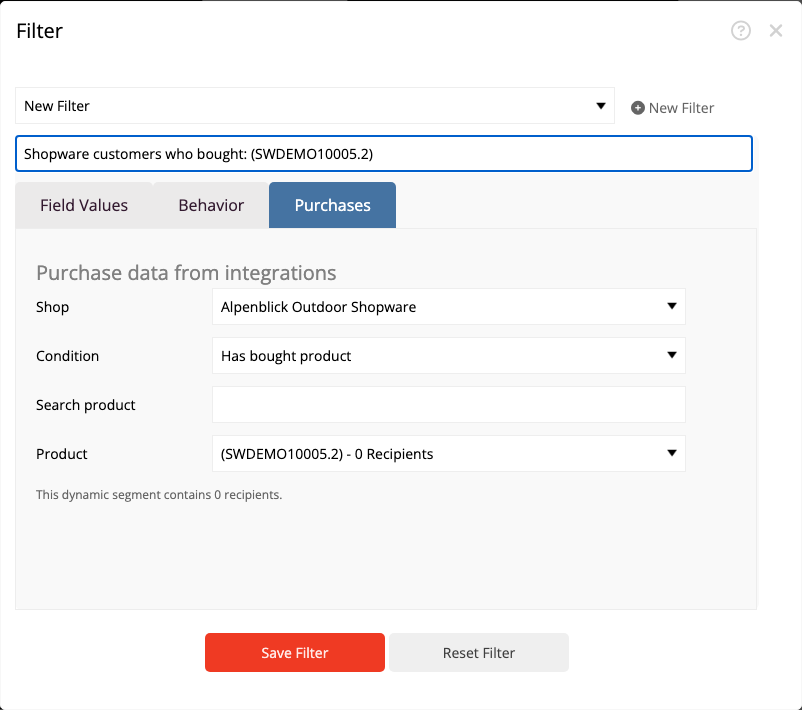
Für Produktbedingungen lädt mailfino nicht den gesamten Shop-Katalog in eine lange Liste. Verwenden Sie die Produktsuche, um das gewünschte Produkt zu finden. Das bleibt auch bei größeren Shops übersichtlich.
Für Kategoriebestandteile nutzt mailfino die Produktinformationen aus den gespeicherten Kaufdaten. Dadurch können Sie Gruppen wie Käufer einer Produktlinie oder Kategorie ansprechen.
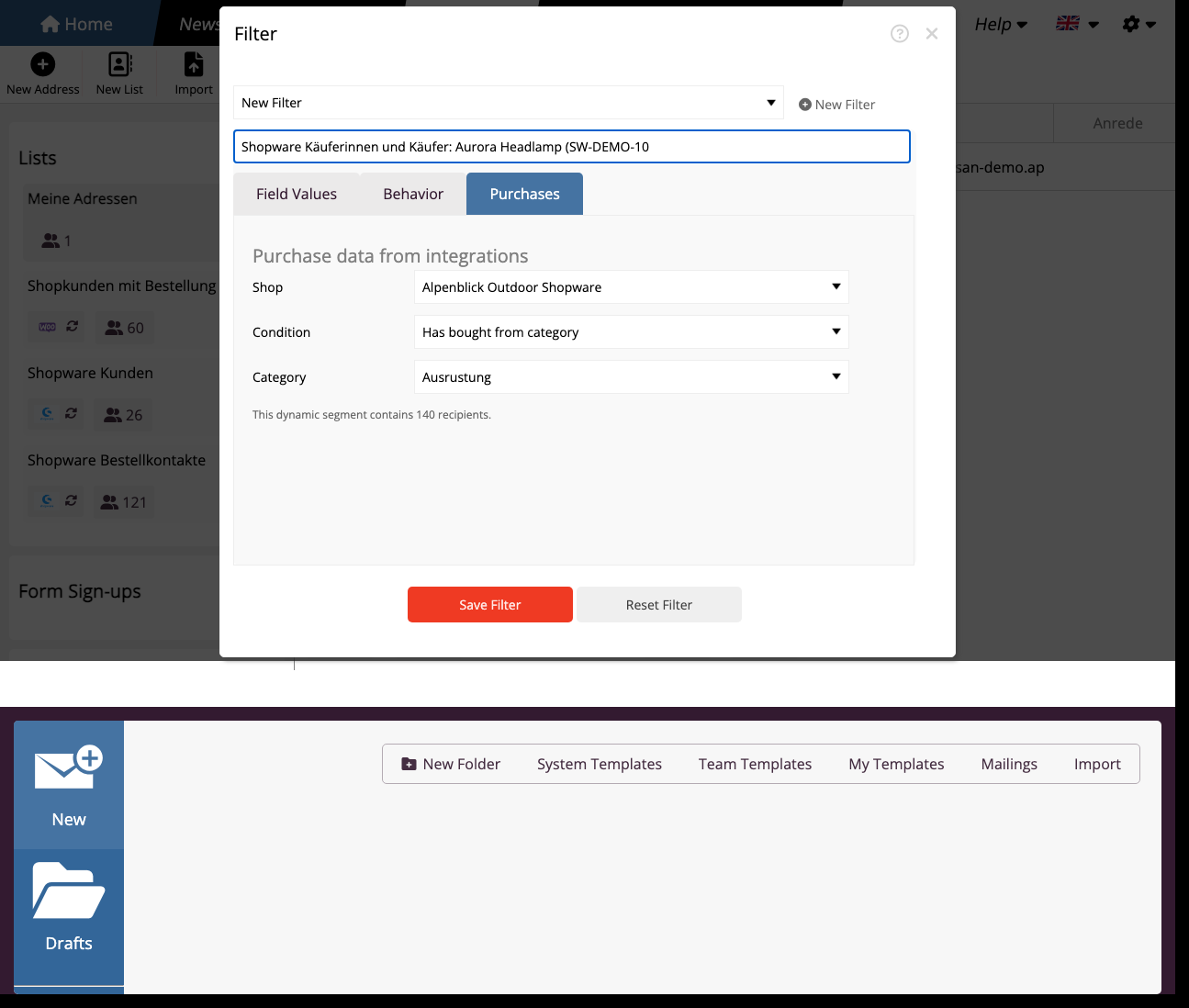
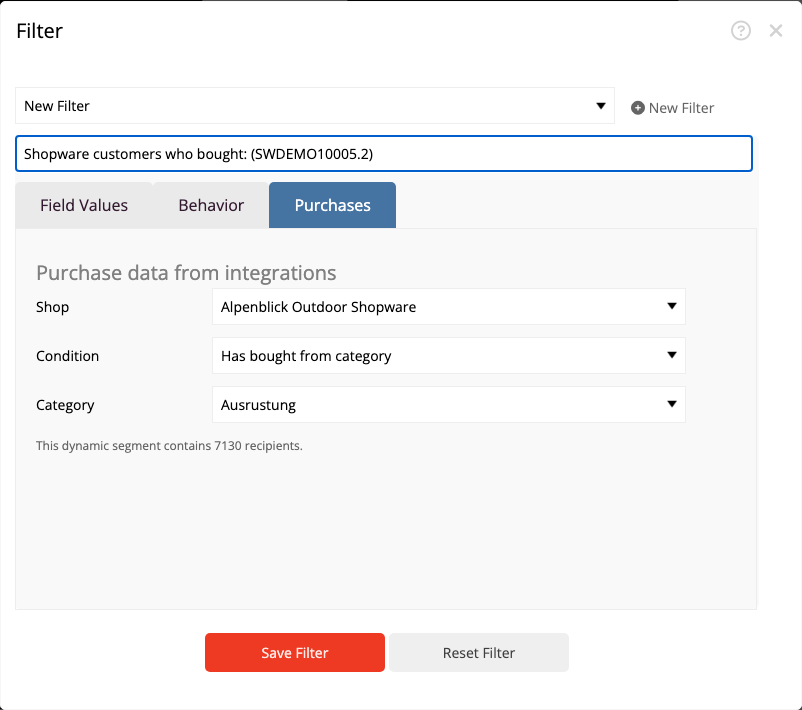
Der Dialog zeigt die berechnete Empfängerzahl direkt an. Diese Zahl bezieht sich auf Kontakte, die in mailfino vorhanden sind und zur Kaufbedingung passen. Reine Shop-Käufer ohne mailfino Kontakt werden nicht angeschrieben.
Speichern Sie den Filter mit einem sprechenden Namen, zum Beispiel Shopware Käuferinnen und Käufer: Aurora Headlamp. Gespeicherte Kaufsegmente erscheinen anschließend wie andere dynamische Segmente in der Listenansicht.
After the order import, you can create dynamic audiences in mailfino based on Shopware purchases. Open Lists and then the filter dialog.
Switch to the Purchases tab in the filter dialog. Select the Shopware shop first. Then choose a condition, for example whether a recipient has purchased at all, purchased a specific product, or purchased from a specific category.
For product conditions, mailfino does not load the entire shop catalog into a long list. Use product search to find the product you need. This keeps the dialog usable for larger shops.
For category conditions, mailfino uses the product information from the stored purchase data. This lets you address groups such as buyers of a product line or category.
The dialog shows the calculated recipient count directly. This number refers to contacts that exist in mailfino and match the purchase condition. Shop buyers without a matching mailfino contact are not contacted.
Save the filter with a clear name, for example Shopware buyers: Aurora Headlamp. Saved purchase segments then appear like other dynamic segments in the list view.
 Deutsch
  English